 Apart from working on Royal Connect, we’re constantly improving Royal TS, Royal TSX and Royal Server.
This blog post is dedicated to the recent quality of life user interface improvements in Royal TSX V26 for macOS.
Without further ado, we'd like do introduce you to 4 new features which are available in the latest Royal TSX V26 Beta build.
Quick Access
The Quick Access functionality allows you to create shortcuts to connections and tasks via the Royal TSX toolbar.
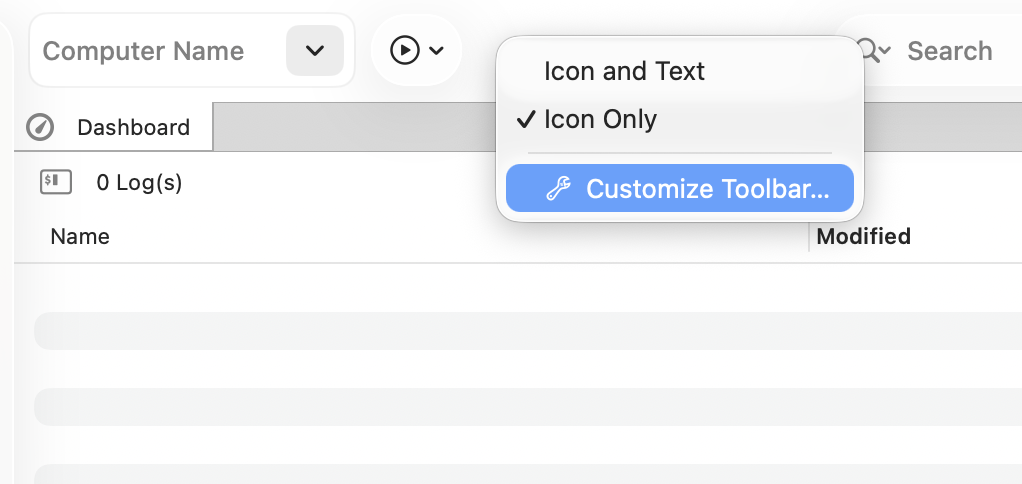
To get started, right-click the toolbar and select Customize Toolbar…:
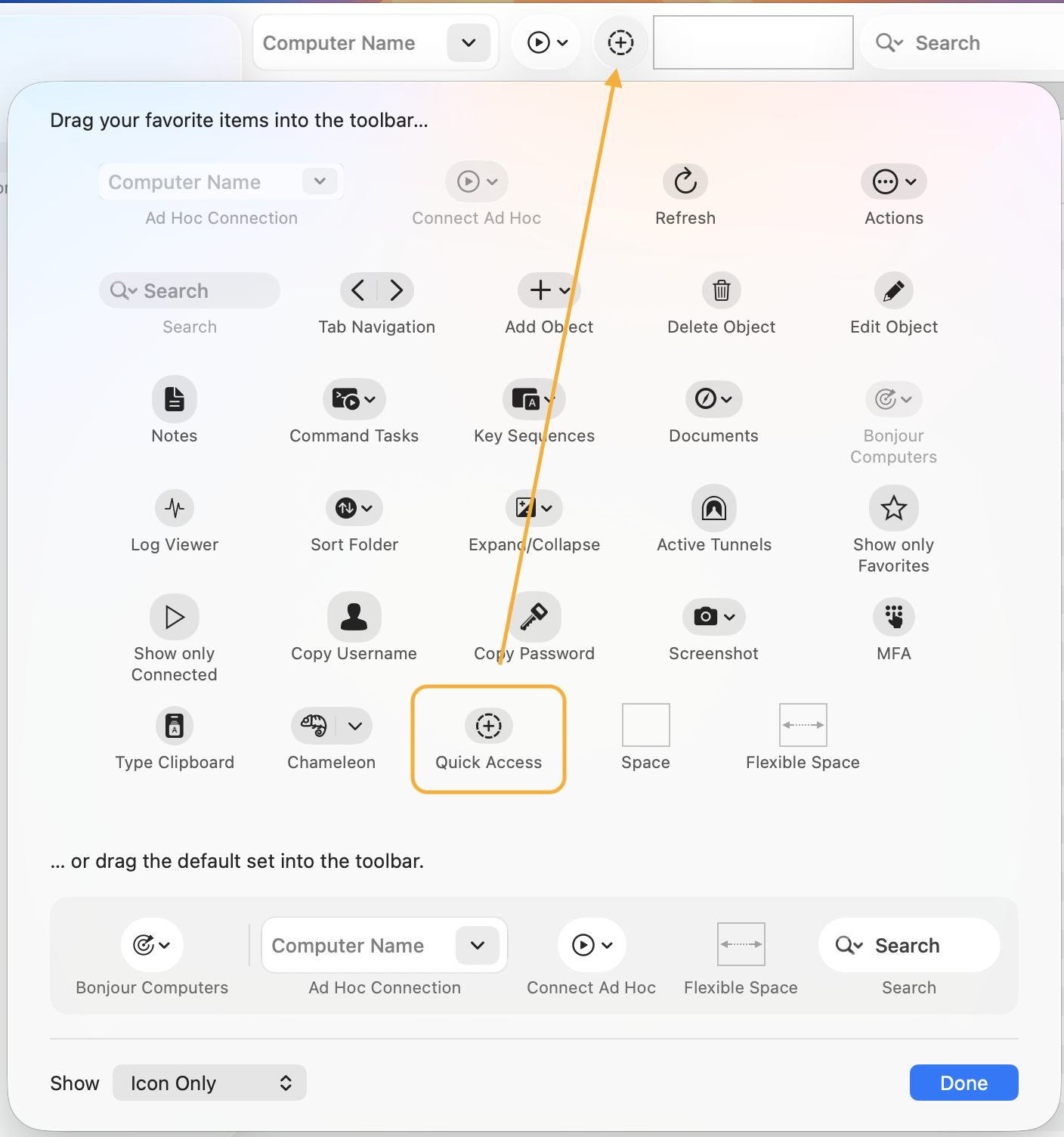
Next, Drag & Drop the Quick Access item into the toolbar:
Finally, Drag & Drop all your desired connections and/or tasks from the Navigation Panel or the Dashboard to the Quick Access item, to create shortcuts for them:
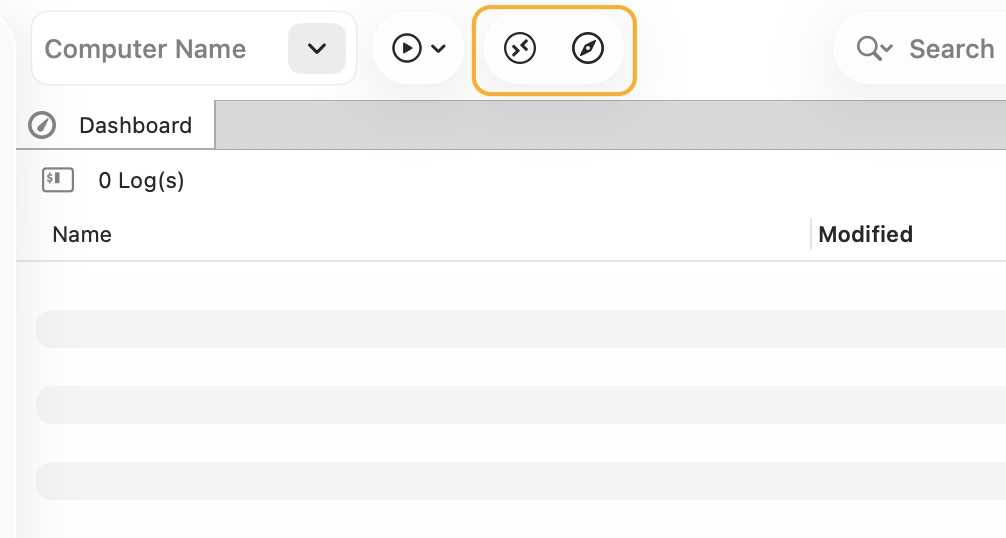
You can add as many Quick Access items to the toolbar as you desire.
To better distinguish between the items you add to quick access we recommend configuring your connections and tasks with custom icons.
Note: To remove items from the Quick Access or toolbar in general, either drag them away while holding down the Command key (⌘) or use the Customize Toolbar functionality to remove them.
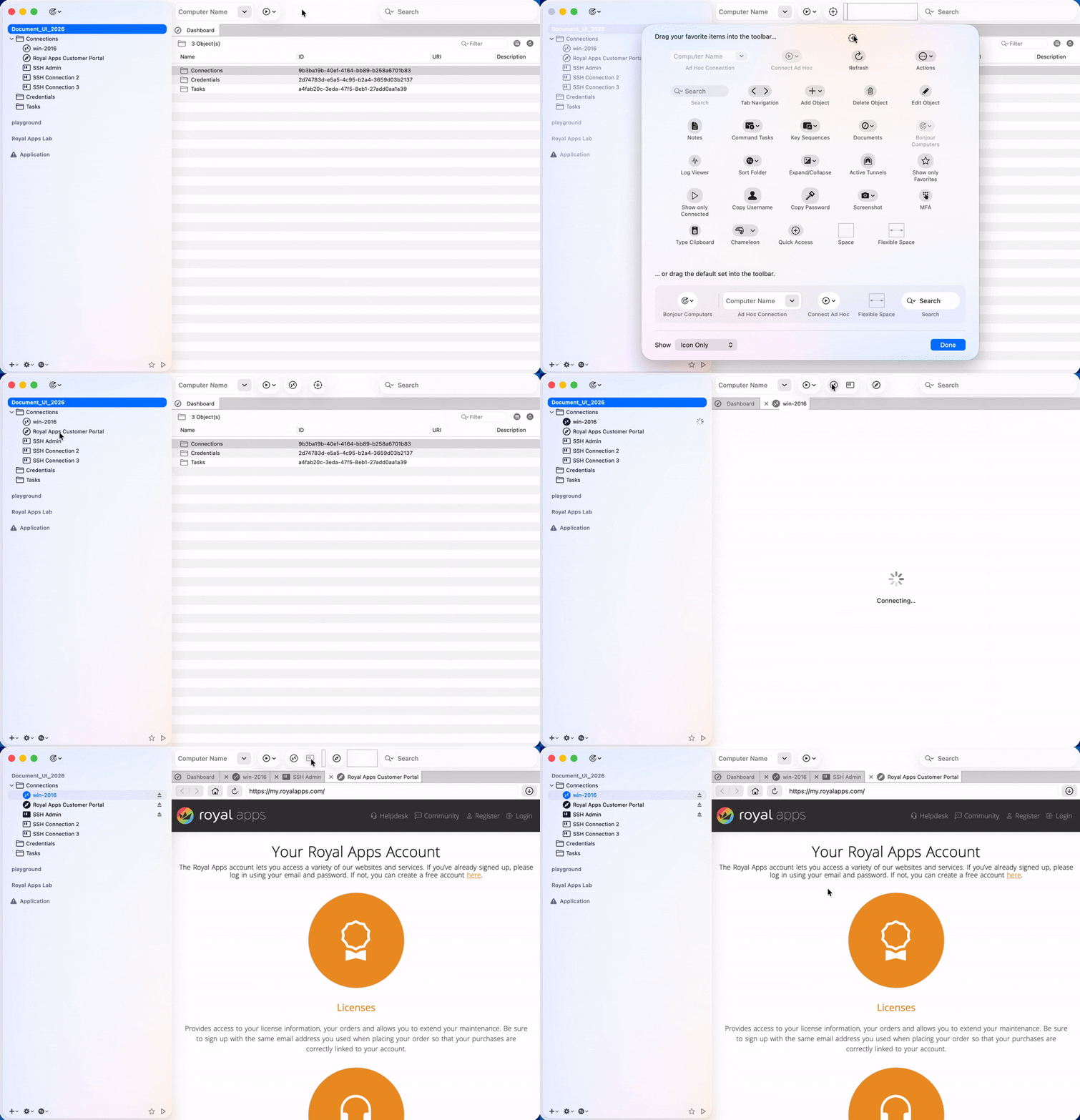
The following animation illustrates an example workflow:
Recent Searches
By default, the Search Bar can be accessed within the toolbar in the top-right corner of Royal TSX.
We've added the functionality to access Recent Searches, which can be viewed by clicking the magnifying glass icon:
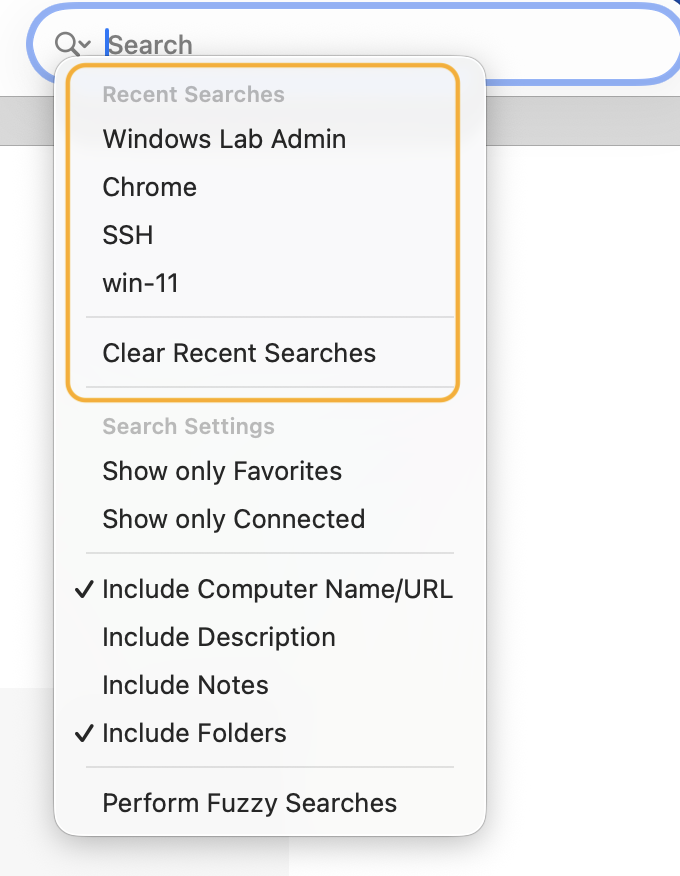
To commit an item to the search history, press return/enter after typing the search query. Searches that don't end with return/enter are considered temporary and will not show up in the history.
Note: To remove the Search History, click Clear Recent Searches.
Splitting Tabs Vertically & Horizontally within the same Window
Previously, splitting tabs was only possible either vertically or horizontally within a single window but it wasn't possible to mix both options to create custom layouts, like a grid.
That restriction has been lifted in Royal TSX V26 and you can now mix and match both variants to create whatever layout you desire.
The following animation should give you an idea of the feature:
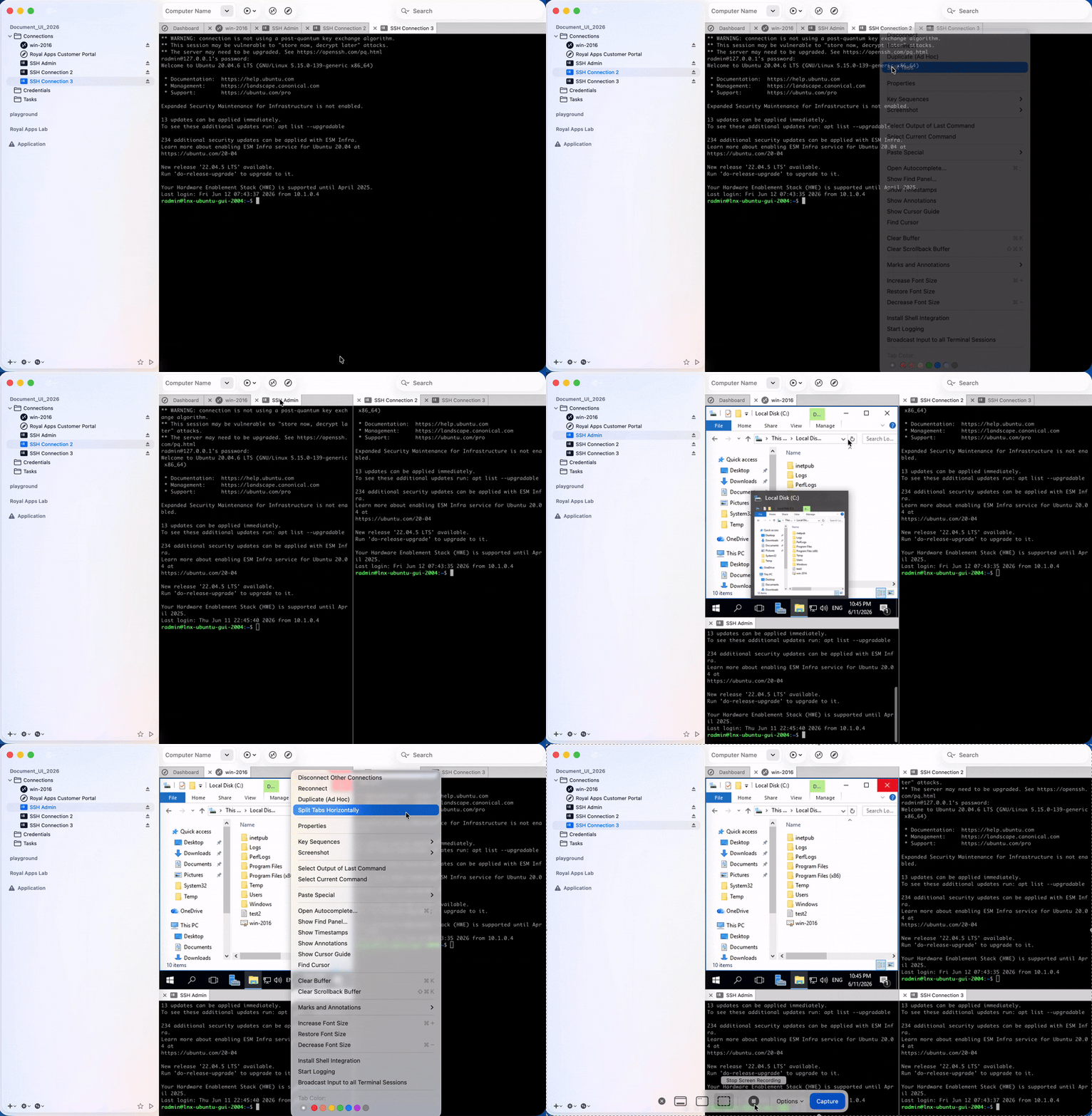
Note: Please note that at least two connections have to be opened at a time in order to split the connection tabs.
Tabbed browsing for Web Pages
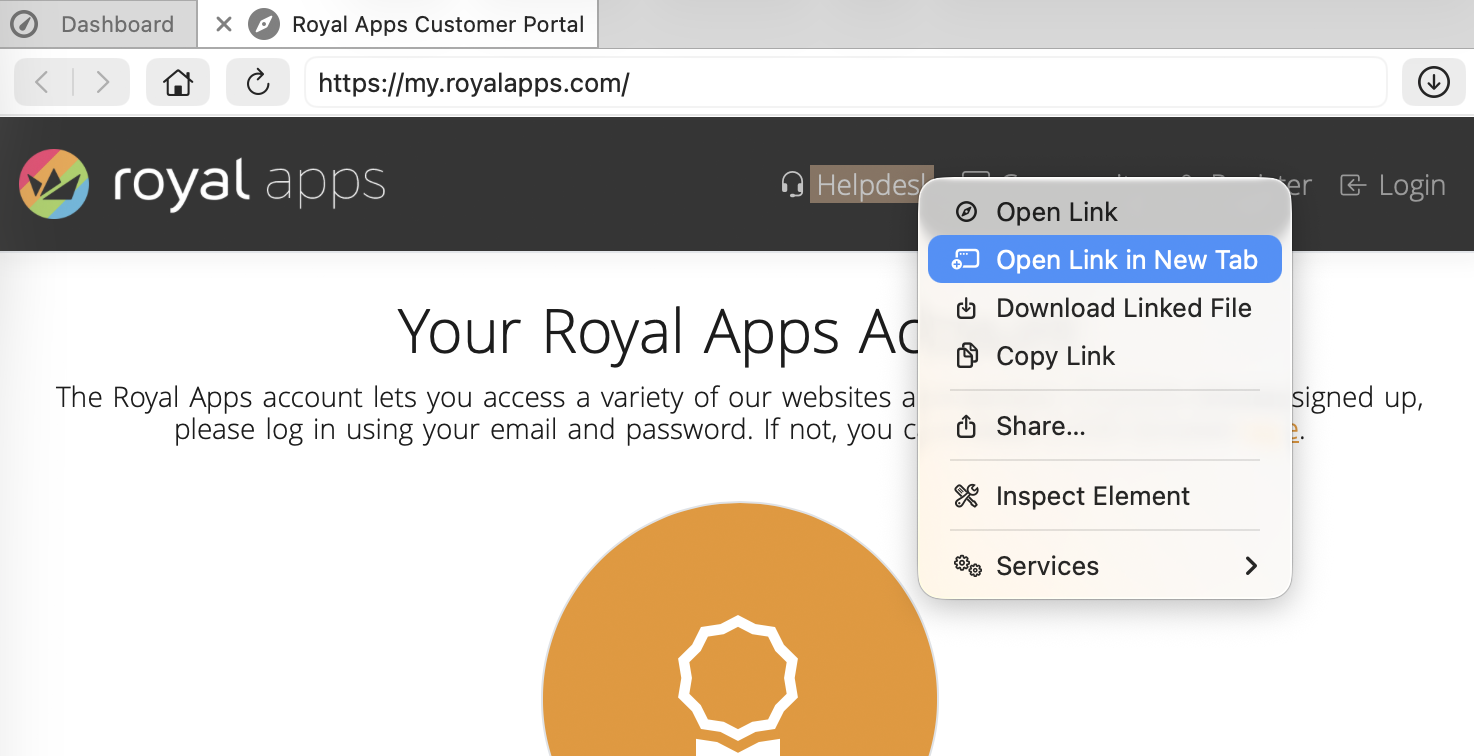
In Royal TSX the Web Page connection type now supports Sub-Tabs.
To access this feature, right-click a link and select Open Link in New Tab:
This will open the link in a new Sub-Tab underneath the main tab bar:
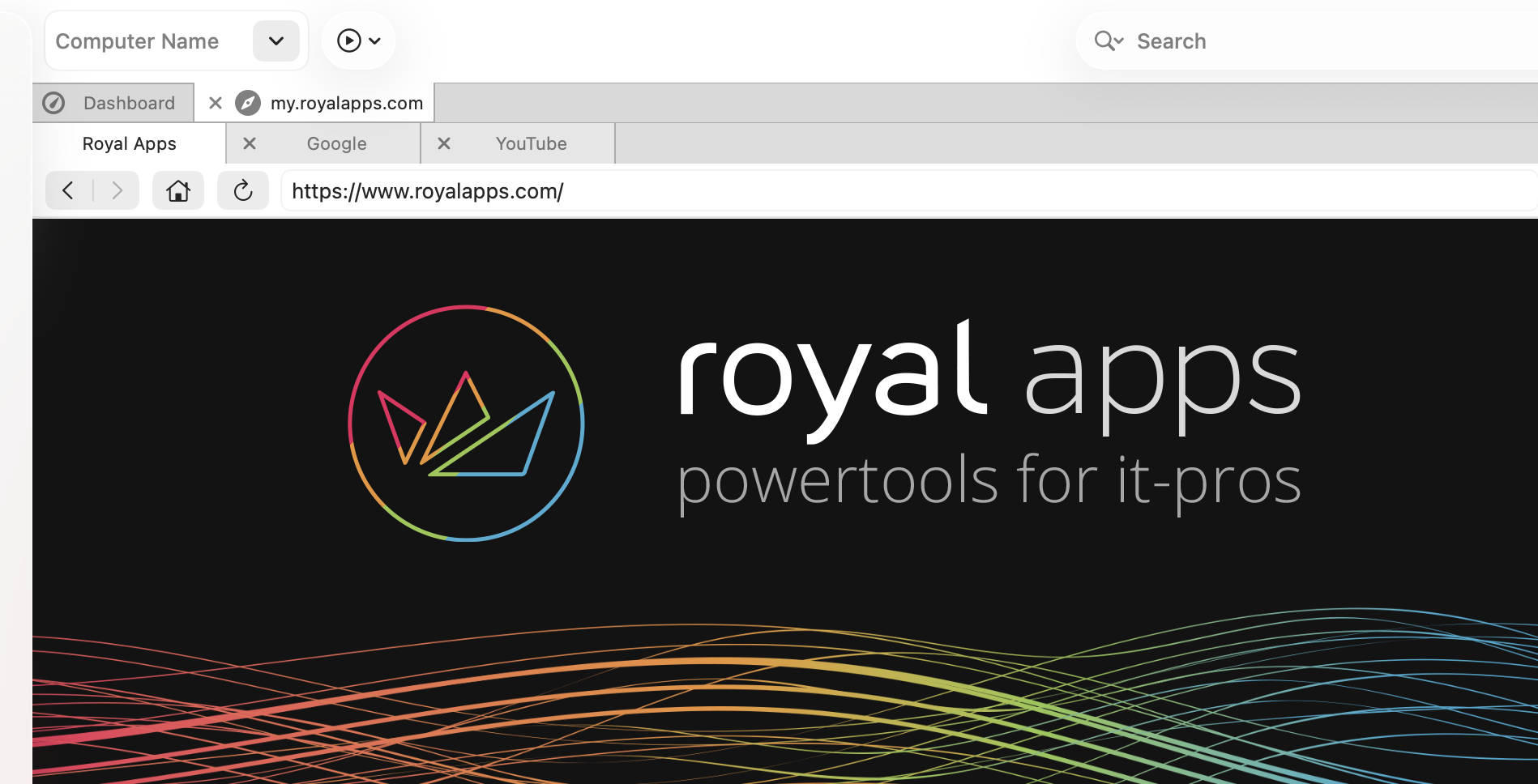
Note: We also made it so that Command+Clicking links opens them in new tabs.
Honorable Mentions
- Improved automatic zoom calculation in the Overview so items are arranged reliably and make better use of available space.
- Support for generating object icons using AI.
- New alternate Actions/Tab menu item Disconnect Other Connections (hold down option/alt ⌥ while the menu is open).
- Support for searching the knowledge base from the Help menu.
- Improved macOS 26 and 27 Liquid Glass support.
We hope you enjoy these quality of life improvements!
Please Test the Beta
We're always looking to improve our apps and value your opinion. That is exactly why we are grateful for any feedback.
Head over to our Royal TSX V26 Beta Landing Page to get a broader view at what's new and to download the beta.
A few practical notes:
- Your Royal TSX V6 license key works with the V26 Beta.
- You can test the Beta without replacing your existing setup.
If you run into issues, please open a support ticket or post in our community forums.
Please try out the beta, and let us know what works, what doesn't, and what still feels rough around the edges. That feedback helps us make the final release much better.


